


Fonts Keyboard
3.916.63K Reviews
App Specs
- Version
- 5.0.89.52075
- Updated On
- License
- Free
- Downloads
- 100,000,000+
- Developer
- Fonts Keyboard
- Categories
- Personalization
- Platform
- Android
Screenshots
 Analysis by AppCompare
Have you ever been texting someone and thought, "Man, I wish my keyboard font was cooler"? Well, my fellow phone fanatic, you're in luck because the Fonts Keyboard app is here to save the day! I downloaded this app to add some flair to my messages, and let me tell you, it's a game-changer for anyone tired of the same old boring fonts.
What to check before the first message
A keyboard app can feel ready before it is actually selected for typing, so I would treat setup as two separate checks: first enable the keyboard in the phone’s settings, then choose it from the keyboard switcher while a text field is open. If it does not appear in a messaging app, I would check those steps before assuming the app is broken. The exact labels can vary by phone, but the useful question is whether the new keyboard is both enabled and active.
Fonts Keyboard is a free personalization app from Fonts Keyboard, with optional in-app purchases ranging from $0.49 to $29.99 per item. It is rated for Everyone, and its current version is 5.0.89.52075, for devices running Android 6.0 or later. It has an average rating of 3.9 from around 1.3 million ratings, with about 17,000 written reviews and over 100 million installs. Those figures suggest a widely tried app, but they do not tell me whether every font style will work equally well in every app.
One practical thing I would do early is test a short, ordinary sentence in the places I use most. A style that looks playful in a personal message may be hard to read in a work chat or a longer email. I would keep the default keyboard easy to reach, too; that way, a decorative font is a choice for the right moment rather than an obstacle when I need to type quickly.
First Impressions
When I first opened the Fonts Keyboard app, I was greeted with a sleek and intuitive interface. It’s super easy to navigate, which is always a plus in my book. The setup process was a breeze. I simply followed a few prompts, and before I knew it, I was ready to unleash a world of creative fonts across my messaging apps.
Getting Started
One thing I loved right off the bat was how straightforward the installation was. The app guides you through enabling the new keyboard in your phone's settings. Once that’s done, you can switch between your default keyboard and the Fonts Keyboard with just a tap. Easy peasy!
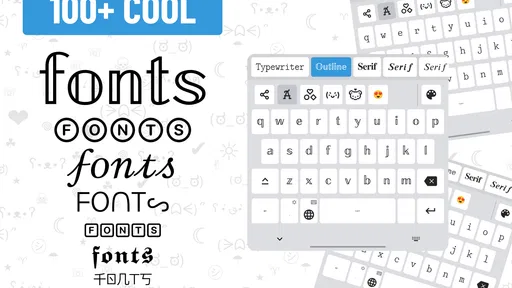
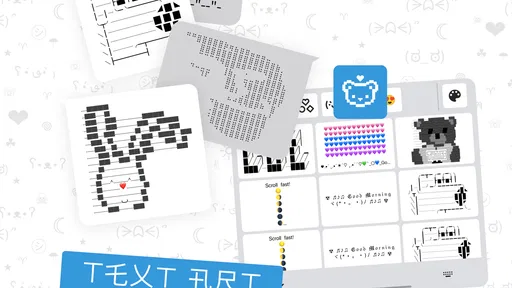
The variety of fonts available blew me away. From quirky and fun to elegant and sophisticated, there’s something to suit every mood and message. You can even find fonts that look like handwriting, which adds a personal touch to your texts.
Worth Reading Before You Choose

Baby Panda World Brings Quick Play to Modern Phones, but Its Game Library Feels Busy

ESPN’s Live Game View Makes Following Close Games Easier

QuizzLand Review: A Good Fit for Short Trivia Breaks, Not Every Player

Basketball Stars: Multiplayer Is Fast, but Can It Recover When Matches Go Wrong?

WEBTOON Turns Phone Updates Into a Better Reading Routine

Link to Windows Runs on Shared Habits, Not Social Feeds
Using the Fonts
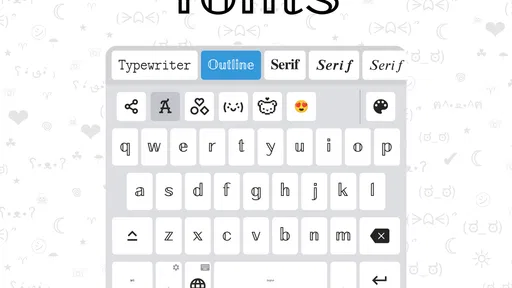
Now, let’s talk about the fonts themselves. There are loads to choose from, and each one adds a unique twist to your messages. Whether you’re sending a casual "hey" to a friend or crafting a more formal message, there's a font for the occasion.
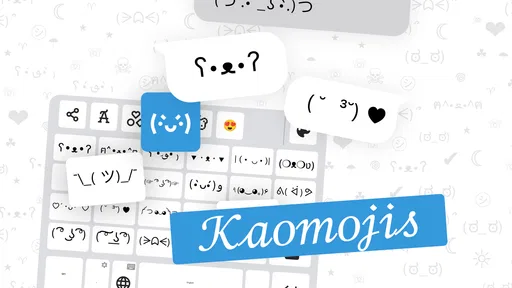
Switching between fonts is seamless. Just tap the globe icon on the keyboard, and you can scroll through the different options. The app also offers some cool text effects, like upside-down text and bubble letters, which are perfect for when you want to spice things up.
Making the styles work for real conversations
My favorite way to use a decorative keyboard is selectively, not as a permanent replacement for ordinary typing. For example, I might add a distinctive phrase to a social bio or use a playful style for a birthday message, then switch back before writing directions, an appointment time, or a longer note. This keeps the expressive part without making every interaction harder to scan.
A useful check is to send a sample to a friend or view it on another screen before relying on a fancy style for something important. Some stylized characters can be less familiar than standard text, and a design that looks clear on my phone may feel busy to someone reading quickly. I would avoid using the most elaborate option for names, addresses, passwords, or anything where accuracy matters more than appearance.
Why You’ll Love It
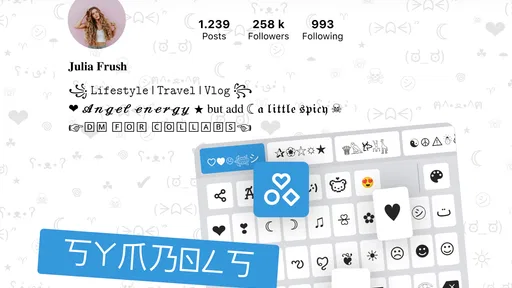
What truly sets this app apart is its versatility. It’s not just about changing your font in texts. You can use these fonts in your social media bios, captions, and even emails if you’re feeling adventurous. I found it especially fun to use on Instagram stories; it makes the text pop and grabs attention.
Another aspect I appreciated is how lightweight the app is. It doesn’t bog down your phone or cause any lag. Everything runs smoothly, which is crucial for any app that integrates directly with your keyboard.
Compared with simply changing a phone’s system font, a keyboard-based approach is more useful when I want a particular message or caption to stand out without changing the look of every menu and screen. A standard keyboard is still the better everyday tool for speed, predictable autocorrection, and long blocks of writing. I see this app as a creative companion to the default keyboard, rather than a reason to abandon it altogether.
Where the experience can snag
If a style does not show up where I expect it to, I would first switch back to the default keyboard and reopen the text field, then select Fonts Keyboard again using the keyboard switcher. I would also try a different text field or app to see whether the issue is limited to one destination. That simple comparison helps separate a keyboard-selection problem from a display quirk in a particular app.
For a slow switch, I would keep the message short while testing, avoid rapidly tapping through styles, and give the keyboard a moment to respond. If the problem persists, closing and reopening the app I am typing in is a sensible basic step. I would not assume that reinstalling is the first fix; checking whether the keyboard remains enabled and selected is quicker and less disruptive.
Room for Improvement?
As much as I enjoyed the app, there’s always room for improvement. Occasionally, I noticed that switching between fonts could be a tad slow, especially when I was in a hurry. But honestly, that’s a minor quibble considering all the fun I’ve had with it.
Also, while the free version is quite generous, unlocking the full suite of fonts requires a subscription. It’s worth it if you love customizing every aspect of your phone, but it’s something to keep in mind if you’re on a budget.
I would take time to explore what is available before paying for anything. The app includes optional purchases, so the free experience may be enough if I only want an occasional flourish. If I find myself repeatedly reaching for styles that are locked, then I can decide whether the available purchase options make sense for how often I actually use them. There is little reason to pay just because a customization app offers more choices.
When the keyboard may not be the cause
Sometimes the trouble is not the keyboard itself. A message may look different after it reaches another app or device, or a particular text box may handle stylized characters differently from a regular message field. If plain typing works but one decorative style does not, I would try another style and another destination before changing settings. That makes it easier to tell whether I am dealing with a keyboard issue or a limitation of the place where I am typing.
I would also distinguish a visual preference from a functional problem. If the text is readable but does not look identical everywhere, switching to standard text may be the practical answer. If no keyboard appears at all, I would revisit the phone’s keyboard settings and confirm it is enabled, then select it again while the cursor is in a text field. These checks are more useful than repeatedly tapping the same font option.
Who will get the most from it
I think Fonts Keyboard suits people who enjoy customizing short bits of writing: social captions, profile text, friendly messages, and occasional celebratory notes. It is especially handy for someone who likes having several visual moods available but does not want to redesign the whole phone. A person who types mostly long work messages, prefers a clean standard layout, or depends on familiar typing habits may be happier staying with the built-in keyboard.
The key trade-off is readability versus personality. A modest style can add character without getting in the way; an ornate one can make a simple sentence slower to read. I would choose the style for the audience and purpose, not just because it is available. That small bit of restraint is what makes the customization feel intentional rather than noisy.
The Final Verdict
In a world where personalization is key, the Fonts Keyboard app is a must-have for anyone looking to add a splash of creativity to their daily conversations. It’s easy to use, packed with features, and makes texting a whole lot more fun.
So, if you’re ready to break free from the monotony of plain fonts and express yourself with style, go ahead and give the Fonts Keyboard app a try. Trust me, your messages will thank you!
Pros
- Wide variety of fonts available.
- Easy to switch between fonts.
- Supports multiple languages.
- Customizable keyboard themes.
- User-friendly interface.
Cons
- Contains in-app ads.
- Limited free font options.
- Occasional lag on older devices.
- Requires internet for updates.
- No gesture typing feature.
FAQs for Fonts Keyboard
What is Fonts Keyboard and how does it work?
Fonts Keyboard is an app that enhances your typing experience by providing a wide variety of stylish fonts for your keyboard. Once installed, it integrates seamlessly with your existing keyboard, allowing you to switch between different fonts easily while typing in any app. It's a great tool for adding a personal touch to your messages, social media posts, and more.
Is Fonts Keyboard available for both Android and iOS?
Yes, Fonts Keyboard is available on both Android and iOS platforms. You can download it from the Google Play Store for Android devices and the Apple App Store for iOS devices. Make sure your device meets the minimum system requirements for a smooth installation and user experience.
Does Fonts Keyboard have any privacy concerns I should be aware of?
Fonts Keyboard requests access to your device's keyboard settings and input method, which is standard for any keyboard app. However, it is crucial to ensure you are comfortable with the permissions it requires. Always download from official app stores and check reviews to ensure the app is trustworthy and protects your privacy.
Are there any costs associated with using Fonts Keyboard?
Fonts Keyboard is typically free to download and use. However, it may offer in-app purchases or subscriptions for accessing premium features or additional font styles. Check the app description on the app store for specific pricing details, and decide if the additional features are worth the cost for your needs.
Can I customize Fonts Keyboard to suit my preferences?
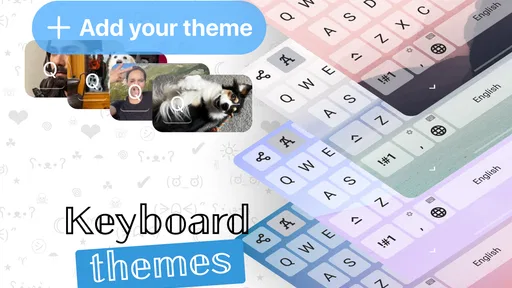
Yes, Fonts Keyboard offers customization options to tailor the app to your preferences. You can choose from a variety of font styles and colors. Some versions may also allow you to add custom backgrounds and themes to your keyboard, enhancing the personalization and user experience further.


